
How to set up system-wide EQ, headphone correction, and Audio Units on Mac
macOS has no built-in system equalizer per output device. Here is how to configure per-App 3-band EQ, per-output 6-band EQ, offline headphone correction profiles, and Audio Unit plug-in chains on macOS 14.4+.
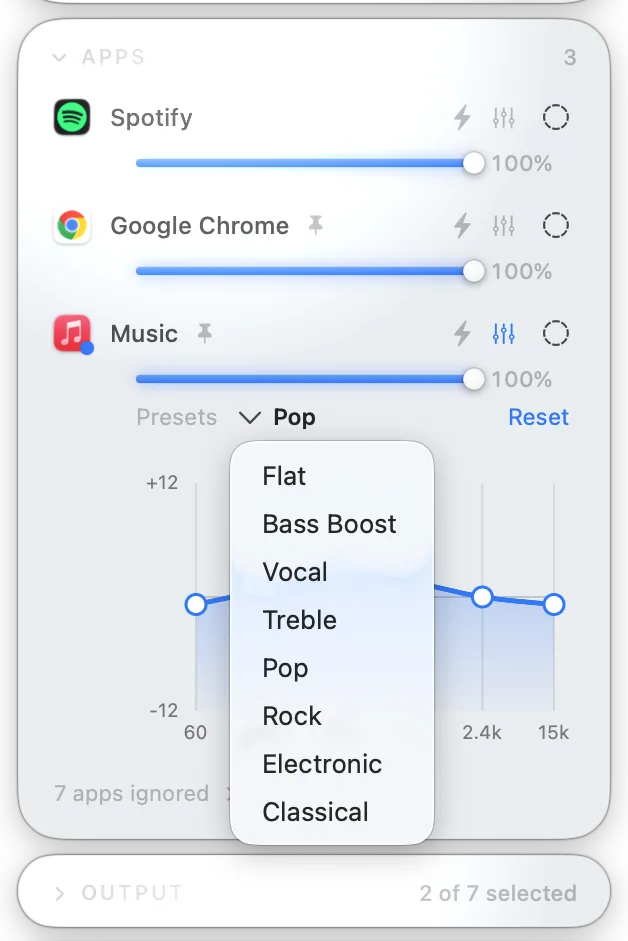
Quick answer: macOS Sound settings do not include a system-wide equalizer. On macOS 14.4 or later, Tutti lets you apply a quick 3-band EQ to individual Apps, or open the effects panel on any local output device to configure an independent 6-band Output EQ, offline Headphone Correction profile, and Apple or third-party Audio Unit plug-in chains.
Four ways to shape sound in Tutti
| Feature | Where it applies | Best for |
|---|---|---|
| Per-App 3-Band EQ | A single playing App | Taming harsh voice calls or heavy bass in one specific App without affecting other audio |
| Per-Output 6-Band EQ | A specific local output device | Tuning desktop speakers, headphones, or a monitor output across all system audio sent to that device |
| Headphone Correction | A specific local output device | Applying an offline frequency-response correction profile for your headphone model or importing a custom parameter file |
| Audio Unit Plug-in Chain | A specific local output device | Running Apple or third-party Audio Unit effects (compressors, spatializers, parametric EQs) in any order |
Configure Output EQ, Headphone Correction, and Audio Units
Per-output audio processing uses macOS system audio capture and requires macOS 14.4 or later on local output devices.
- Open Tutti from the menu bar and find your headphones, speakers, or audio interface in the Outputs card.
- Open the effects panel on that output row to launch the attached side-panel editor.
- Output EQ: turn on the 6-band equalizer, drag the six linked faders, or pick a built-in curve tuned for that output device.
- Headphone Correction: search the built-in offline catalog for your headphone model, or import a custom parameter file.
- Audio Unit Plug-ins: add installed Apple or third-party Audio Unit effects, open their native custom plug-in window (or Tutti’s generic parameter view), and drag to reorder EQ, Headphone Correction, and plug-ins freely.
Each local output remembers its own processing chain. You can also save the full output chain—including EQ bands, correction profile, and Audio Unit states—inside a Preset for one-click switching.
Practical tips for clean sound and low latency
- Local outputs only: Output EQ, Headphone Correction, and Audio Unit chains process local Core Audio outputs; AirPlay outputs are not supported.
- Watch digital headroom: avoid stacking heavy positive gain in both per-App EQ and Output EQ at the same time, which can push peaks toward clipping.
- Check plug-in latency for video: some mastering or linear-phase Audio Unit plug-ins introduce lookahead latency. Test with a video or live source before keeping heavy plug-ins active for everyday movie watching.
Sources
Want simpler sound and display controls?
Tutti brings audio outputs, app volume and display brightness into one native menu bar panel.
Download Tutti