
Mac screen still too dim at maximum brightness?
Learn how Brightness Upscaling can improve readability on eligible displays, how to turn it on and off, and where its limits lie.
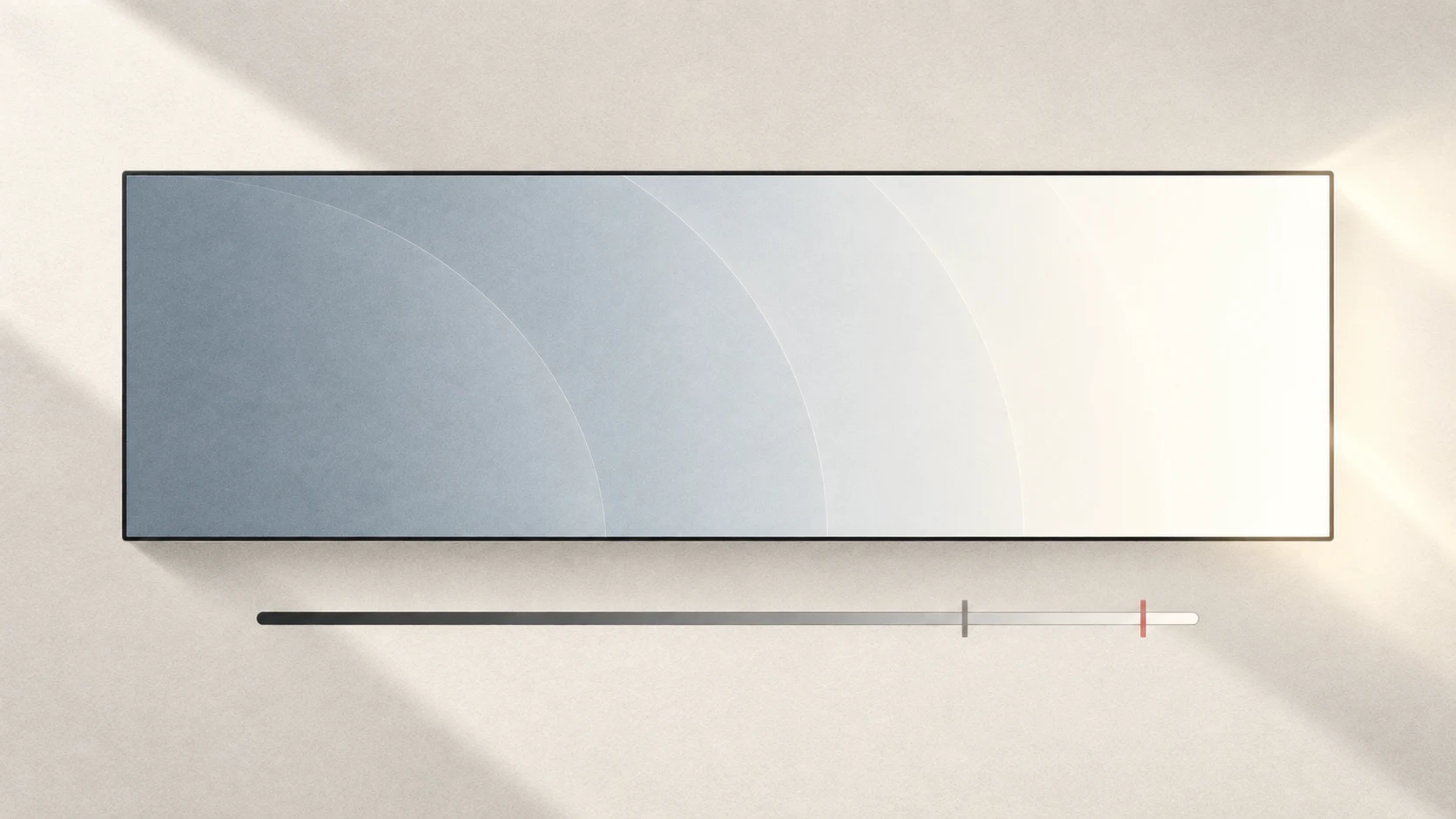
Quick answer: reduce reflections and check ordinary brightness first. If the screen remains hard to read, Tutti’s Brightness Upscaling can use available brightness headroom on eligible displays. It is not supported by every screen or connection.
Working beside a bright window
Try changing the screen angle, avoiding direct sunlight or moving your seat to reduce reflections. If ordinary brightness is still insufficient, consider Upscaling. It cannot make all monitors equally bright or remove reflections from glass.
Turn on Brightness Upscaling in Tutti
Use macOS 15 or later and a Tutti version that supports the feature.
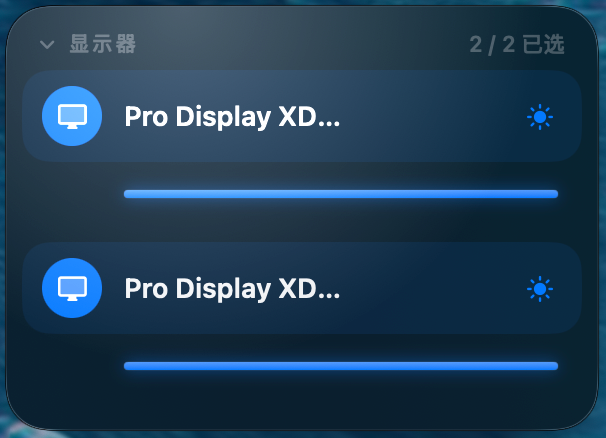
- Open Displays and find an eligible screen.
- Click the sun button beside it to enable Brightness Upscaling.
- Move that screen’s own brightness slider above 100%, judging the result by readability.
100% is the neutral point with no gain applied. Each screen is controlled separately. The percentage is not a measurement in nits or a guaranteed physical brightness multiplier. Ordinary group brightness, brightness keys and scrolling stay within the standard range; use the individual screen slider to enter the gain range.
Why some displays cannot use it
Tutti checks display capability and available brightness headroom. Supported routes include compatible XDR displays and eligible built-in and external HDR screens. An HDR label alone does not guarantee that Upscaling is available.
An external screen’s input, cable, dock and HDR state can affect availability. Check the current connection and display settings, then read the compatibility notes. The advanced Gamma/Metal selection applies only to compatible XDR displays. Tutti chooses the route for other eligible screens automatically, so those settings are not a prerequisite for getting started.
Return to a normal image
Move the slider back to 100% to restore neutral, or click the sun button to disable Upscaling. Turn it off before using Extra Dim; the two cannot be enabled together.
Upscaling can affect HDR content and color accuracy. Tutti does not detect HDR content and automatically disable the effect. Restore neutral or turn it off before photo editing, grading or calibration.
Save a familiar setup
A preset that includes the screen can remember its Upscaling switch and level. This is useful when moving between bright-window work and evening use. A preset stores settings, not a promise of identical physical brightness at different times or with different displays and connections.
Sources
Want simpler sound and display controls?
Tutti brings audio outputs, app volume and display brightness into one native menu bar panel.
Download Tutti