
How to control external monitor brightness on Mac
Start with macOS, then control one screen or a group. Understand why the monitor and its connection affect brightness controls.
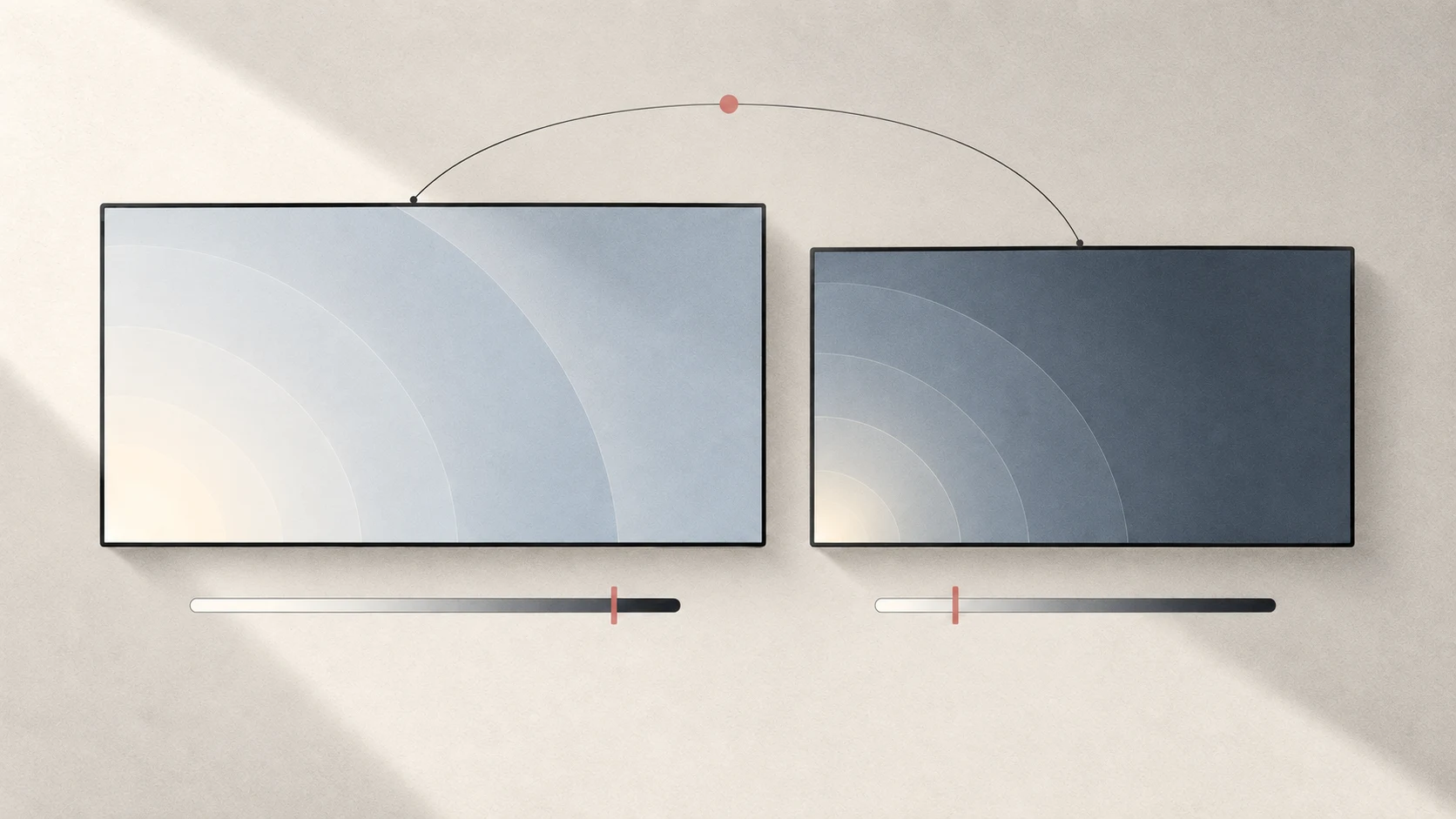
Quick answer: select the screen in System Settings → Displays and look for a brightness slider. If none appears, use the monitor’s own buttons or on-screen menu. On supported connections, Tutti can also control brightness from the menu bar.
Check which screen you are adjusting
With an external monitor connected, the keyboard brightness keys may not target the screen you expect. Select it in Displays settings and change its brightness while watching the result. Apple notes that non-Apple displays may require their own controls and menus.
If software control is unavailable through a dock or adapter, try a direct connection. A working picture does not prove that brightness commands can travel through the same connection.
Understand the control method
| Method | What changes | What to check |
|---|---|---|
| Native brightness | The supported screen’s brightness | Use the available macOS or Tutti slider |
| DDC/CI | A compatible external monitor’s hardware brightness | Both the monitor and connection must support it |
| Software dimming | The displayed image | This does not necessarily lower the backlight; check Tutti’s control label |
Enable DDC/CI in the monitor menu if that option exists. If control still fails, note the monitor model, input and adapters. HDMI or USB-C alone is not a compatibility guarantee.
Adjust one screen or a group with Tutti
Tutti display controls require macOS 15 or later.
- Open the menu bar panel and find Displays. If hidden, enable the card in Settings → Panel.
- Drag the slider beneath one display to change that screen alone.
- Click display rows to include or exclude them from the brightness group, then use the top brightness slider to adjust the selected screens together.
You might keep the main screen brighter than a secondary screen during the day, then lower only the two screens you use at night. Unselected screens stay unchanged. Matching percentages do not imply matching physical brightness across different monitors.
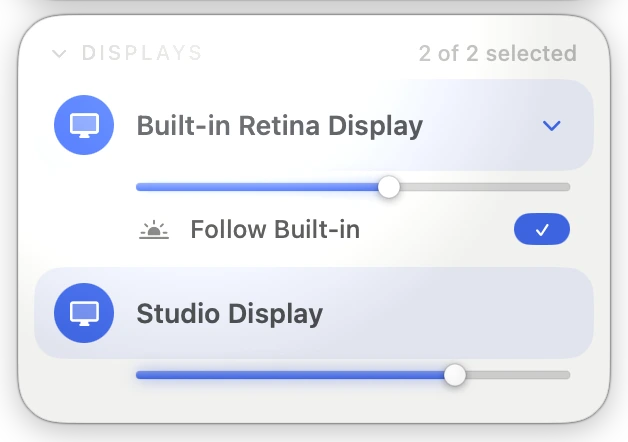
Let external screens follow a MacBook
Expand the built-in display controls and enable brightness following. Selected external screens follow changes by the same amount, preserving the difference you set until a screen reaches its adjustment limit. This can suit a desk used from daylight into the evening.
If minimum brightness is still too bright, read the Extra Dim and black-screen guide. If maximum brightness is not enough, see Brightness Upscaling. For resolution, refresh rate and main-display selection, see the display documentation.
Sources
Want simpler sound and display controls?
Tutti brings audio outputs, app volume and display brightness into one native menu bar panel.
Download Tutti