
How to stop Mac from switching audio output, mic, or volume automatically
Plug in an HDMI monitor or open AirPods nearby and macOS often hijacks your sound output, microphone, or volume. Here is why Core Audio does it and how Tutti Audio Guard locks everything in place.
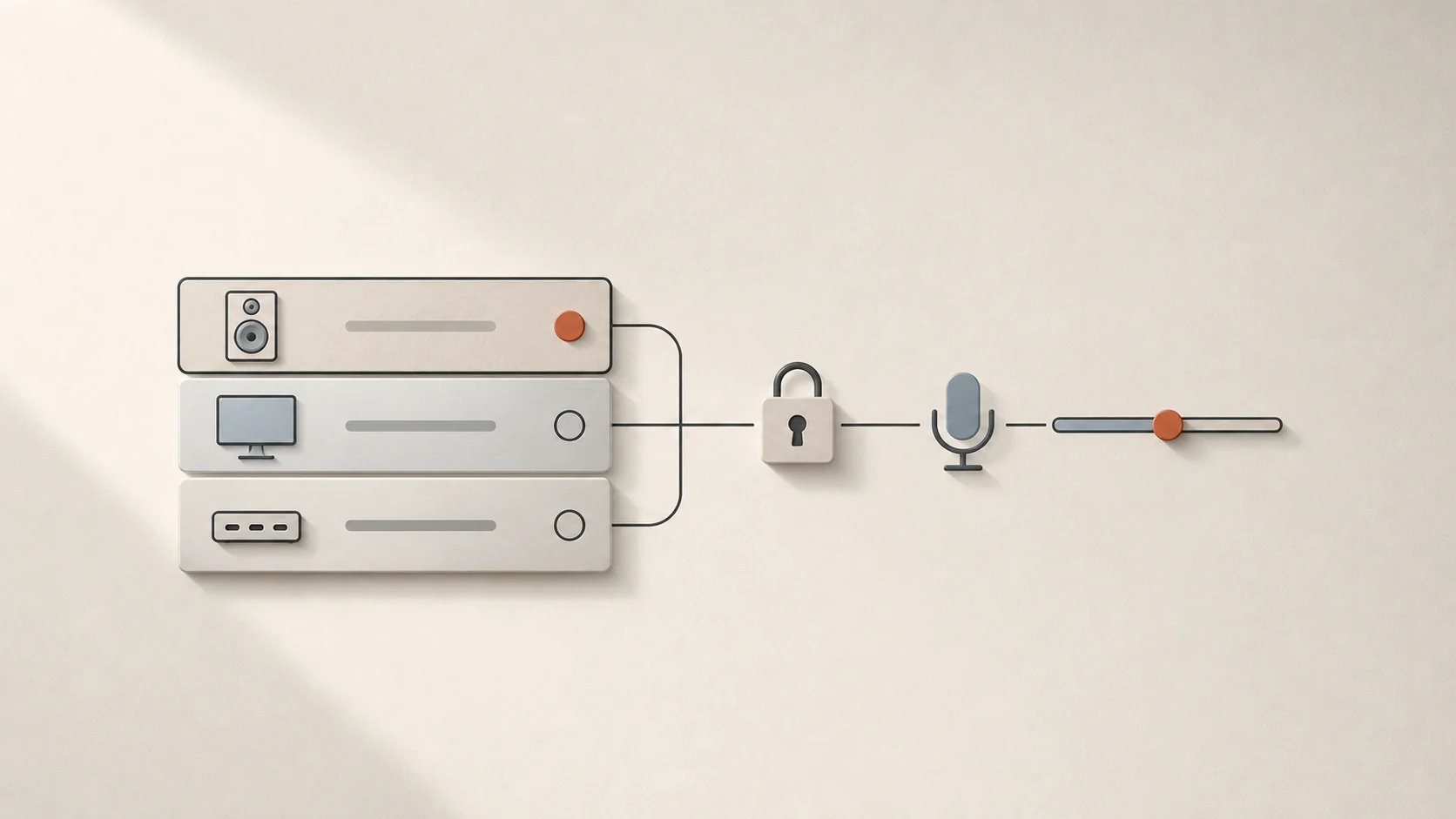
Quick answer: macOS does not include a built-in audio priority list or device lock, so Core Audio automatically switches defaults whenever a monitor, dock, or Bluetooth headset appears. With Tutti’s Audio Guard, you can set an exact output priority order, lock your preferred microphone input, and lock output volume against unexpected changes.
Why macOS keeps hijacking your audio devices
Every time you plug in a USB-C or HDMI monitor, wake a MacBook connected to a Thunderbolt dock, or pop open an AirPods case nearby, macOS Core Audio registers a newly enumerated audio endpoint. By design, macOS treats the newest connection as your latest intent and silently shifts the system default—even when an external monitor has no built-in speakers or your Bluetooth headset forces your microphone into low-quality call mode.
Because System Settings only lets you pick a single current output and input with no ranking or lock rules, you end up manually switching devices back multiple times a day.
How Tutti Audio Guard solves all three problems
| Audio Guard feature | What it prevents | How it works |
|---|---|---|
| Output Device Priority | HDMI monitors, docks, or stray peripherals stealing sound | Drag devices into your exact preferred order; Tutti automatically activates the highest-ranked online device |
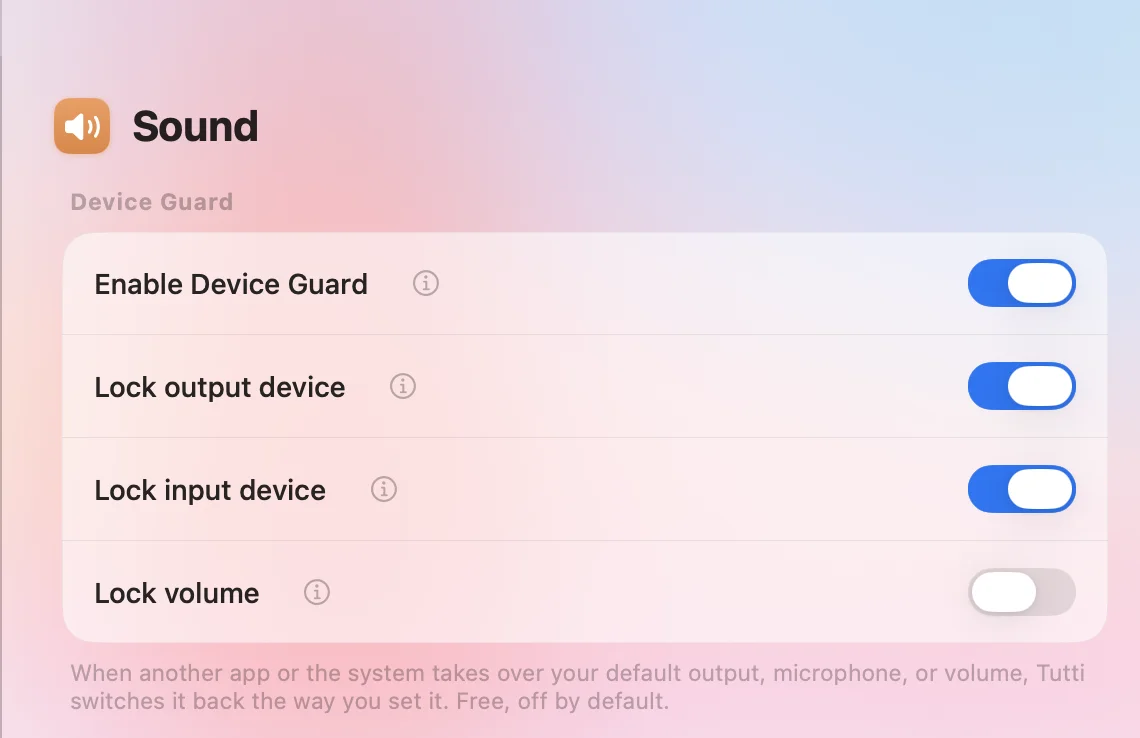
| Lock Input Device | Bluetooth headsets, webcams, or docks hijacking your mic | Keeps your chosen studio or Mac microphone locked as the default input even when new devices connect |
| Lock Volume | Apps, reconnects, or wake events resetting or blasting volume | Holds your output volume steady and blocks unexpected jumps or resets |
Set up output priority and device locks
- Open Tutti from the menu bar and go to Settings → Audio Guard (or open Audio Guard).
- Rank your outputs: enable Output Device Priority and drag your speakers and headphones into your ideal order—for example:
1. AirPods Pro2. Studio Display3. Bose SoundLink
- Put on your AirPods and audio moves to them automatically. Put them back in the case and playback returns cleanly to your Studio Display. Offline devices stay in your list so your order is never lost.
- Lock your microphone: enable Lock Input Device under Input & Volume Locks and select your preferred USB, XLR, or built-in Mac microphone so Bluetooth headphones or webcams cannot steal it.
- Lock your volume: turn on Lock Volume to stop wake-from-sleep events, USB reconnects, or misbehaving apps from resetting or spiking your listening level.
Practical tips for desk and laptop setups
- Keep HDMI monitors out of the way: place silent or unused display audio outputs at the bottom of your priority list (or leave your preferred desk speakers above them) so plugging in a display never mutes your setup.
- Pair with Lock Input for calls: locking your dedicated desk mic prevents Bluetooth headphones from switching into muffled hands-free HFP mode when you join a meeting.
Sources
Want simpler sound and display controls?
Tutti brings audio outputs, app volume and display brightness into one native menu bar panel.
Download Tutti