
How to control Mac volume, app audio, and display brightness from iPhone
Watching a movie from the couch or listening across rooms? Here is how Tutti Remote pairs over local Wi-Fi so you can adjust Mac master volume, per-App volume, external display brightness, and Presets from iPhone—plus Home Screen widgets.
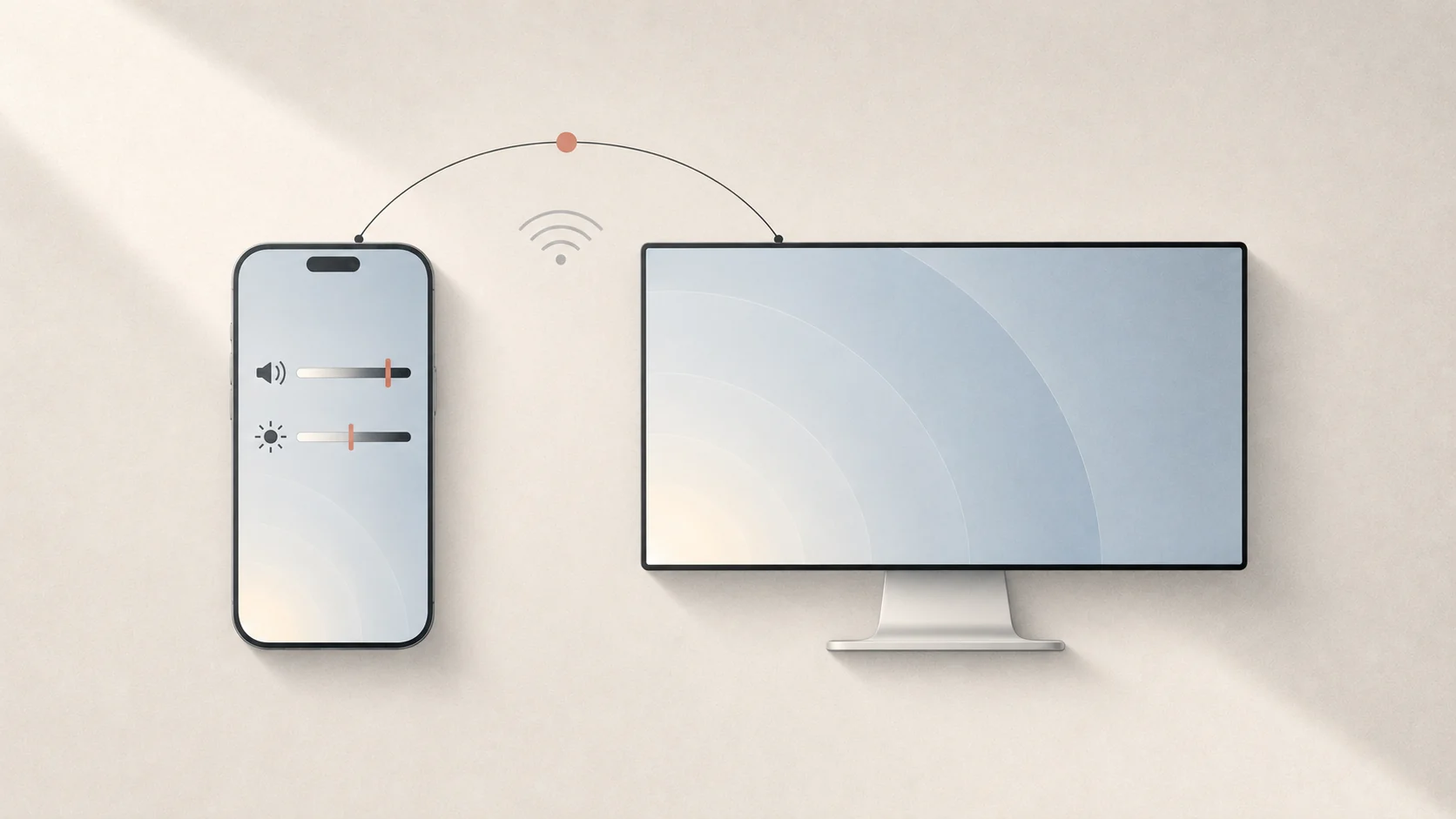
Quick answer: macOS does not include a built-in iPhone remote for system volume, per-App audio, or external display brightness. With Tutti Remote (the iOS companion app on the App Store, included with Tutti Pro), you can pair your iPhone to your Mac over local Wi-Fi in seconds—with no cloud account—and control master volume, individual speakers, per-App volume, monitor brightness, and one-tap Presets from the app or directly from iOS Home Screen widgets.
When an iPhone remote beats walking back to the keyboard
- Movie night on a TV or Studio Display: lower volume, mute a sudden ad, or dim an external display from the couch without grabbing a mouse.
- Music across rooms: adjust Spotify, Apple Music, or browser volume—or rebalance individual speakers—from anywhere on your home Wi-Fi.
- One-tap scene changes: switch between Tutti Presets (such as Desk Speakers, Late Night Headphones, or Living Room) without touching your Mac.
What you can control with Tutti Remote
| Control | What it adjusts on your Mac | Available as iOS Home Screen Widget |
|---|---|---|
| Master Volume | Overall system volume and quick mute | Yes |
| Output Device Volume | Individual speaker or headphone levels | Yes |
| Per-App Volume | Specific apps such as Spotify, Apple Music, or browsers | Yes |
| Display Brightness | Built-in Mac screen and external displays (e.g., Studio Display or DDC/CI monitors) | Yes |
| Presets | One-tap switching between saved audio and display setups | In Tutti Remote app |
Pair your iPhone with your Mac in seconds
- Install Tutti Remote from the App Store on your iPhone (included with Tutti Pro) and make sure both your Mac and iPhone are on the same local Wi-Fi network.
- On your Mac, open Tutti and go to iOS Remote Control in Settings to enable remote access and display the pairing QR code.
- Open Tutti Remote on your iPhone and scan the QR code—or select your Mac directly from the local network list. Pairing stays local over Wi-Fi with no cloud account or sign-in required.
- Once connected, drag sliders to adjust master volume, individual outputs, per-App volume, or external monitor brightness, or tap a Preset to switch your entire desk setup at once.
Pin iOS Home Screen widgets for instant +/- control
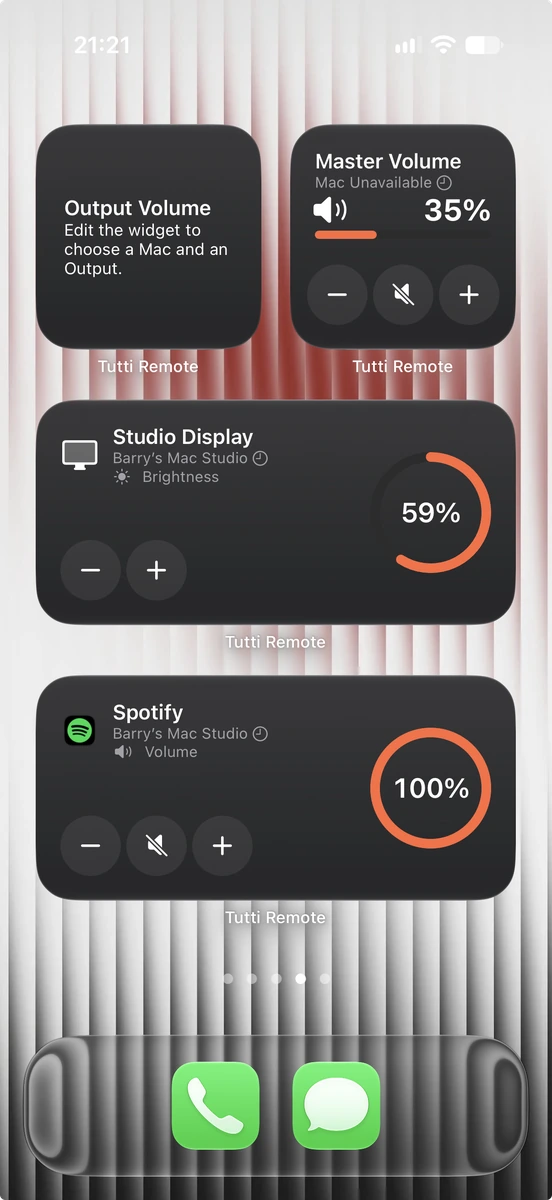
You do not even need to open the app for everyday adjustments. Long-press your iPhone Home Screen, add a Tutti Remote widget, and choose the exact target you want—Master Volume, a specific Output Volume, Display Brightness (such as your Studio Display), or a specific App Volume (such as Spotify).
Widgets support both dark and light appearances and let you tap +, −, or mute straight from your Home Screen.
Sources
Want simpler sound and display controls?
Tutti brings audio outputs, app volume and display brightness into one native menu bar panel.
Download Tutti